NUT Client - Synology NAS
NUT UPS setup
Synology NAS setup
Table of contents
- Source
- Synology NAS configuration pre-work on NUT server
- Set up UPS client in the Synology DSM UI
- Troubleshooting
Source
Zanshin Dojo’s Synology + Proxmox + NUT UPS is very helpful and is one of the few clear articles I found about how to set up a Synology NAS as a client only, and not as a NUT server.
NUT UPS setup
Synology NAS configuration pre-work on NUT server
Synology’s DSM OS has a built-in NUT client monitor that doesn’t require any SSH file editing. However, the NUT server has to be set up properly because Synology’s client is hardcoded to use specific NUT UPS and user names.
You have to name things as below or the Synology will refuse to connect. They can’t be called anything else.
Ensure your NUT Server has the proper UPS and user names
- A UPS name in the
ups.conffile on the NUT server must be calledups. -
A user name in the
upsd.usersfile on the NUT server must be calledmonuserwith passwordsecret. DSM connects as a secondary, so this user needsupsmon slaveprivilege:[monuser] password = secret upsmon slave
Corrected 2026-08-25. Earlier versions of this page said the user had to be called
admin. That is wrong.adminis the account the NUT server’s ownupsmonuses on the Raspberry Pi. The Synology authenticates asmonuser. The two accounts got conflated.Confirmed from the server log after fixing
upsd.users:User monuser@192.168.0.5 logged into UPS [ups]
The instructions in this document already name things so that the NUT server will work with the Synology NUT client.
Synology NAS setup
Set up UPS client in the Synology DSM UI
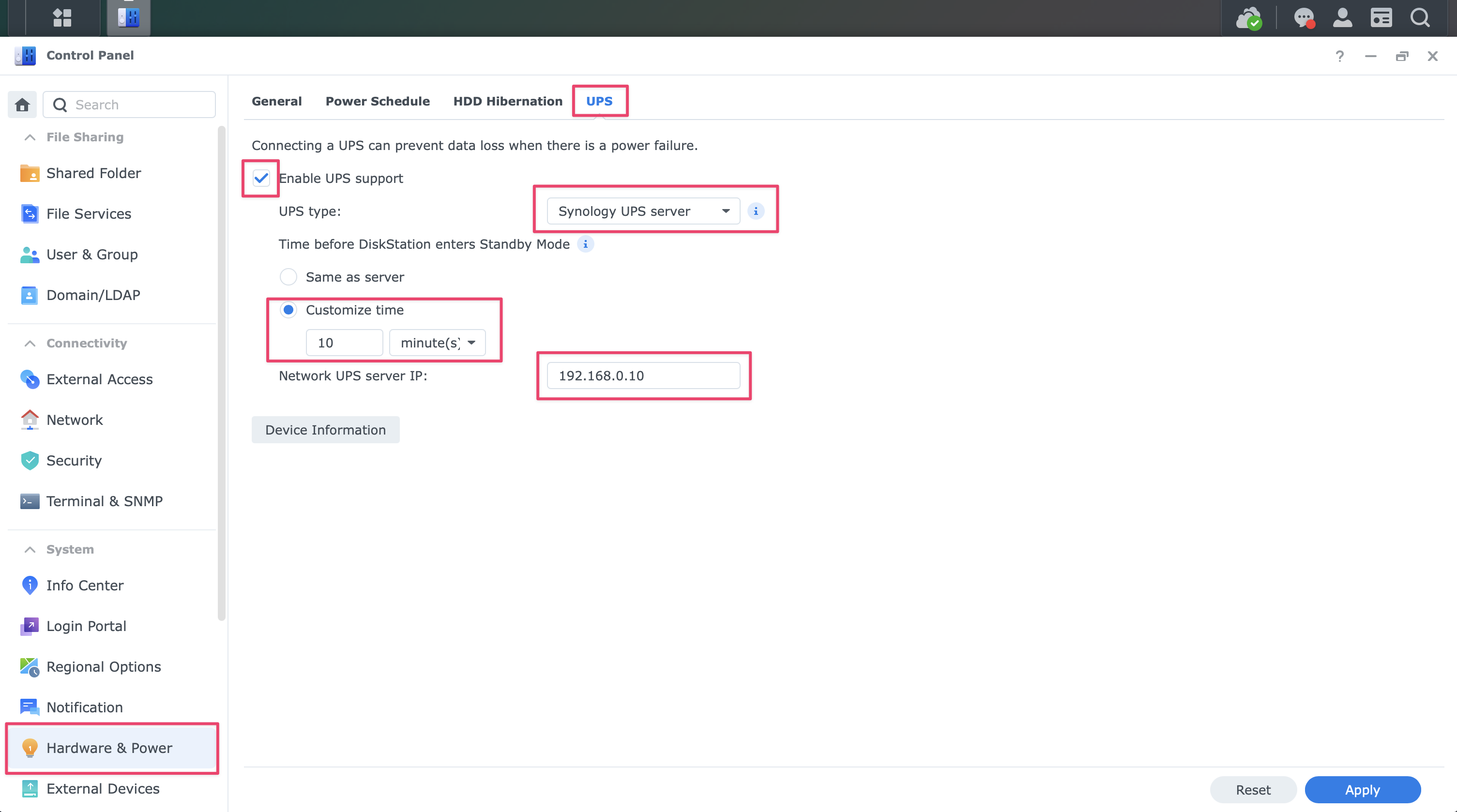
Enter your NUT server’s IP address into the Synology DSM UPS screen in Control Panel
Click:
Hardware & Power → UPS
Fill the screen out like below:
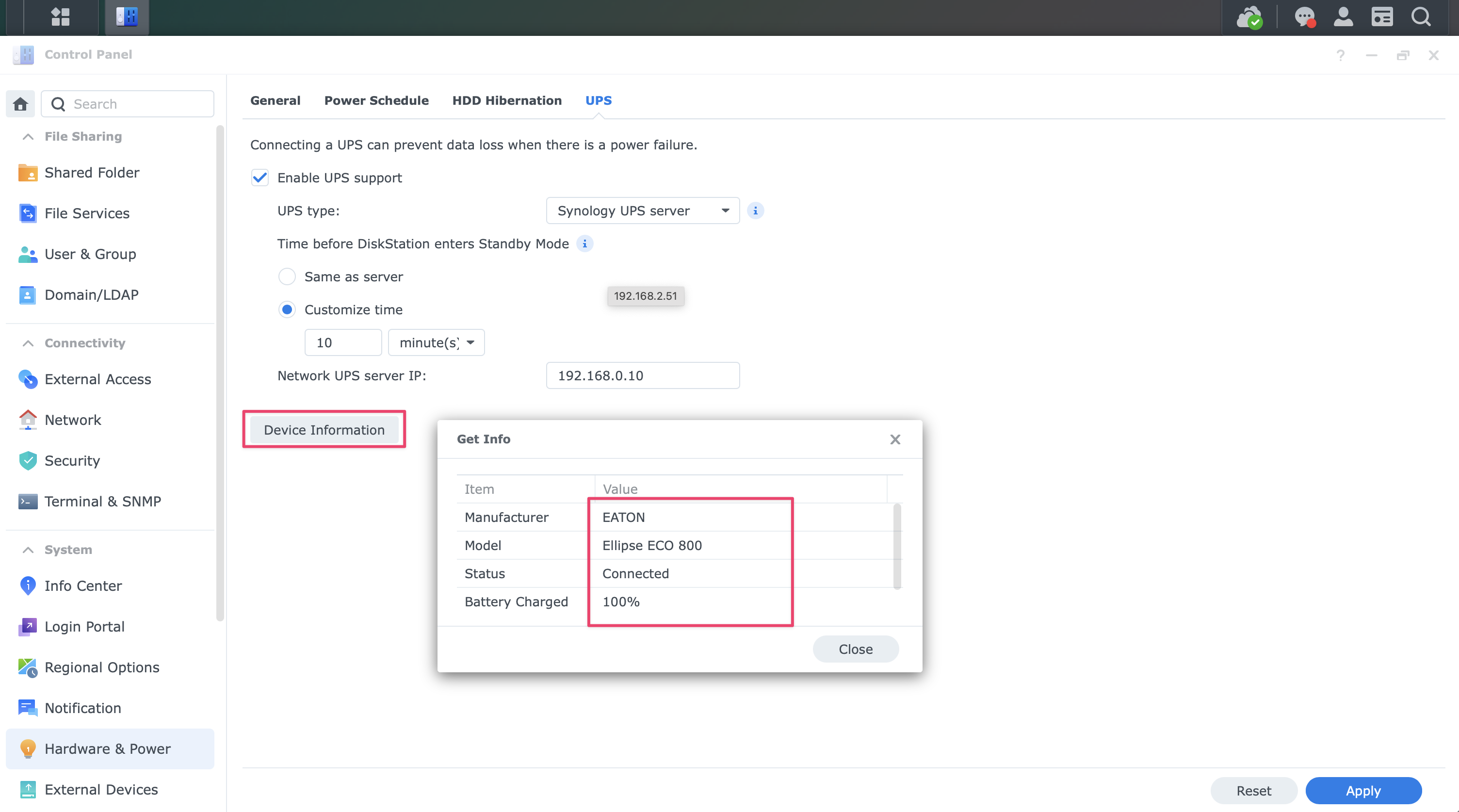
Check the NAS connection to your UPS by clicking Device Information and reviewing the table in the popup:
Troubleshooting
Device Information is necessary but not sufficient
If the Device Information popup shows your UPS manufacturer, model, Connected, and a battery percentage, the NAS is definitely reading live data from the NUT server. That confirms the read path only.
upsd serves status reads to anyone who connects. The LOGIN that registers the NAS as a secondary is a separate step, and it can fail while the display still looks perfectly healthy. Check it from the server, below.
Confirm the connection from the NAS
DSM does not ship ss, so use netstat. Over SSH to the NAS:
sudo netstat -tnp | grep 3493
A healthy result names upsmon as the owning process:
tcp 0 0 192.168.0.5:38886 192.168.0.10:3493 ESTABLISHED 21051/upsmon
Note that ps | grep upsmon on DSM will show nothing even when it is running, because DSM’s default ps does not list other users’ processes. Use ps -ef | grep -i ups instead.
Confirm the login from the NUT server
This is the check that actually matters. On the NUT server:
sudo journalctl -u nut-server | grep "logged into"
You want a line naming the NAS:
User monuser@192.168.0.5 logged into UPS [ups]
An established TCP connection with no matching login line means DSM reached the server and was refused authentication. upsd does not log failed logins, so the absence of a success line is the only signal you get.
Do not trust /usr/syno/etc/ups/upsmon.conf
That file is a stock template DSM ships and never edits. On my NAS it still reads MONITOR ups@localhost 1 monuser secret master, which contradicts the real configuration in both server address and mode. Reading it will send you in the wrong direction.
The file DSM actually writes when you fill in the UPS screen is /usr/syno/etc/ups/synoups.conf:
upsslave_enabled="yes"
ups_mode="slave"
upsslave_server="192.168.0.10"
ups_wait_time="600"
ups_wait_time is in seconds and corresponds to Time before DiskStation enters Standby Mode in the UI.
That standby timer is DSM’s own protection mechanism and runs independently of NUT’s primary/secondary forced-shutdown handshake. The NAS will park itself after the configured delay on battery even if the NUT LOGIN is failing. Useful to know, but it also means a broken LOGIN can hide behind working protection indefinitely.